Showing posts with label Dynamics 365 SCM. Show all posts

Microsoft announced the deprecation of Visual Studio 2022 for X++ development starting with Platform Update 74 (10.0.49)

Microsoft announced the deprecation of Visual Studio 2022 for X++ development.

Starting with Platform Update 74 (10.0.49), Visual Studio 2022 is no longer supported for X++ development. The only supported IDE is Visual Studio 2026.

The general availability of Platform Update 74 (10.0.49) will be in September 2026, so there is plenty of time to prepare a migration plan and get ready for the new update.

Regression Suite Automation Tool (RSAT) retirement announcement

Microsoft is hereby announcing the deprecation of the Regression Suite Automation Tool (RSAT), effective May 15, 2027.

As of that date, Microsoft will no longer provide support, maintenance, bug fixes, or feature enhancements for RSAT. Customers may continue to use RSAT after the effective date;  however, the product will remain available only on an unsupported basis.

This decision reflects Microsoft’s continued investment in modern testing approaches that support broader automation scenarios, greater extensibility, and long-term platform evolution.  RSAT was developed primarily for Finance and Operations scenarios and does not address the broader end-to-end testing requirements that many organizations now have across connected applications and business processes.

  • RSAT is optimized for Finance and Operations scenarios and offers limited support for broader cross-application testing requirements.
  • Organizations increasingly require testing solutions that can scale across integrated business processes and support modern automation practices.

Customers should evaluate alternative testing solutions in accordance with their business  and technical requirements, including offerings from the broader ecosystem of third-party testing vendors.

Dynamics 365 Finance and Operations Unified Developer Experience (UDE) environment. How to check deployment model errors.

I recently faced errors in the Unified Developer Experience (UDE) environment while trying to deploy a model. However, there were no build errors and my model had no dependencies on other models.

In order to find the root cause of the issue, we should see the log file. 

  • Click on the CRM link and open the "Finance and Operations Package Manager".
  • Go to "Operation History". (If you want to view all your deployment history, you need to select the "Package" section.)
  • Select the failed line with clicking on the "Operation Name".
  • Download the "operationlogs.zip" and you will see, what's really happened on the environment.

If you try to open the "Finance and Operations Package Manager", but it gives you an error even if you have the Power Platform Admin role assigned, you need to add yourself to the "System Administrator" role in the PPAC environment.

In order to add yourself to the System Administrator role in the PPAC environment, you need to perform the following steps:

  • Go to https://admin.powerplatform.microsoft.com/manage/environments. 
  • Click on your environment name to open the details.
  • Click "Membership" in the top right corner. 
  • If you aren't in the list of Sys admins, click "+Add me" button to add yourself.
After that, you should have access to the "Finance and Operations Package Manager" page.

Visual Studio 2022 requirements to upgrade Tier-1 environments (CHE) to version 10.0.46.

If you are going to upgrade your developer cloud-hosted (OneBox) environments to version 10.0.46, you may face an issue at step 28. The issue is related to Visual Studio 2022.

Executing step: 28
Update script for service model: DevToolsService on machine: localhost update DevTools service
The Finance and Operations X++ Visual Studio extension requires Visual Studio 2022 to be updated. Please update Visual Studio 2022.
The step failed

If you are currently using version 17.10 or earlier, please update to version 17.11.5 or later. Once you have updated, try/retry the update process again.

Table synchronization failure in Dynamics 365 Finance & Operations due to the "SaveContent" field property.

Once, I experienced a database synchronization issue: "Table Sync Failed for Table: XXXXX. Exception: System.InvalidOperationException: Database execution failed: Column name 'XXXXXX' does not exist in the target table or view.

I had checked the table structure in my local DevBox and the mentioned field was present in the table. I checked the table structure on my local DevBox, and the mentioned field was present. When I checked the field's properties, I recognized that it has the "SaveContent" property set to "No" and is included in one of the table's indexes.

I set the "SaveContent" property set to "Yes" and performed a compilation and database synchronization. After that, the error "Table Sync Failed for Table: XXXXX. Exception: System.InvalidOperationException: Database execution failed: Column name 'XXXXXX' does not exist in the target table or view." disappeared.

Set-based operations in Dynamics 365 Dynamics 365 Finance and Operations. Cannot insert the value NULL into column 'Name', table 'TableName'; column does not allow nulls. UPDATE/INSERT fails.

When a set-based operation is used (e.g., update_recordset or insert_recordset), and an error occurs with the message "Cannot insert the value NULL into column 'Name', table 'TableName'; the column does not allow NULLs. UPDATE/INSERT fails", it means that no corresponding record was found in the joined table, so a null value was fetched and tried to be inserted into the table's column. 

It can happen if values are obtained from outer-joined data sources when there is no corresponding record in the outer-joined table, and thus a null value is retrieved.

Another case is when values are obtained from views, and those views contain calculated columns whose values can be "empty".

The solution can be using "inner join" with update_recordset and insert_recordset commands, or by using a standard "while select" clause with a view that has calculated columns.

For example, if the view is used and the code below throws the mentioned error: "Cannot insert the value NULL into column 'Name', table 'TableName'; the column does not allow NULLs. UPDATE fails"

TableForecast     tableForecast;

OperationSumView  operationSumView;

update_recordset tableForecast

    setting ItemId    = operationSumView.ItemId,
            ItemName  = operationSumView.ItemName
join ItemId, ItemName from operationSumView
    where operationSumView.RefRecId == tableForecast.RecId;

It is an example of how it can be changed to avoid the error.

while select forupdate tableForecast

join ItemId, ItemName from operationSumView
   where operationSumView.RefRecId == tableForecast.RecId
{
   tableForecast.ItemId    = operationSumView.ItemId;
   tableForecast.ItemName  = operationSumView.ItemName;
   tableForecast.update();
}

Dynamics 365 Finance and Operations: How to overwrite system fields.

In some cases, we need to modify the values of system fields. Below is a code example of how to do this. The key points are the "OverwriteSystemFieldsPermission" and "overwriteSystemFields" commands:

public void insert()

{
   // Assert and enable the system overwrite permission and metadata property.
   new OverwriteSystemfieldsPermission().assert();

   this.overwriteSystemfields(true);

   this.setAuditFieldsAnonymous();

   super();

   // Revert and disable the system overwrite permission and metadata property.
   this.overwriteSystemfields(false);
   CodeAccessPermission::revertAssert();
}

public void update()

{
   // Assert and enable the system overwrite permission and metadata property.
   new OverwriteSystemfieldsPermission().assert();

   this.overwriteSystemfields(true);
   this.setAuditFieldsAnonymous();
     
   super();
 
   // Revert and disable the system overwrite permission and metadata property.
   this.overwriteSystemfields(false);
   CodeAccessPermission::revertAssert();
}

public void setAuditFieldsAnonymous()

{
   utcdatetime  now = DateTimeUtil::utcNow();
   SysDictField createdByField;
   SysDictField createdDateTimeField;
   SysDictField modifiedByField;
   SysDictField modifiedDateTimeField;

   createdByField = new SysDictField(tableNum(Table), 

                                    fieldNum(Table, CreatedBy));
   createdDateTimeField = new SysDictField(tableNum(Table), 
                                           fieldNum(Table, CreatedDateTime));
   modifiedByField = new SysDictField(tableNum(Table), 
                                      fieldNum(Table, ModifiedBy));
   modifiedDateTimeField = new SysDictField(tableNum(Table), 
                                            fieldNum(Table, ModifiedDateTime));
           

   if (createdByField.isSQL())

   {
      this.(fieldNum(Table, CreatedBy)) = '';
   }


   if (modifiedByField.isSQL())
   {
      this.(fieldNum(Table, ModifiedBy)) = '';
   }


   if (modifiedDateTimeField.isSql())
   {
      this.(fieldNum(Table, ModifiedDateTime)) = now;
   }


   if (this.RecId == 0 && createdDateTimeField.isSql())
   {
      // CreatedDateTime is only set on insert.
      this.(fieldNum(Table, createdDateTime)) = now;
   }
}

Lifecycle Services (LCS) portal retirement announcement

Based on announcements regarding Microsoft Dynamics 365 Finance & Operations, February 16, 2026, marks a major shift in how environments are managed, with the transition of key capabilities from Lifecycle Services (LCS) to the Power Platform Admin Center (PPAC). 

Creating all new D365 Finance and Operations (F&O) cloud implementation projects will be routed through the Power Platform Admin Center (PPAC), rather than created in the LCS, which has been the traditional approach for years. As a result, environment actions, support motions, and governance checks will be moved to be in PPAC, not assumed from LCS.

Environment actions, support motions, and governance checks will be moved to be in PPAC, not assumed from LCS.

Existing projects, on-premises deployments, Commerce, and AX 2012 upgrades will continue to use LCS for the time being. To migrate existing LCS projects to PPAC, Microsoft provides a guide.

D365 SysOperation framework. The "SysOperationJournaledParameters" attribute. Adding a batch job as a subtask to the main batch job.

We have a class that is implemented using the SysOperation Framework and needs to be added to the "Batch task" form (System Administration > Batch > View Task) so that we can define execution parameters. For example, we need to set dependencies, sub-tasks or the execution sequence between batch jobs. In this case, we need to use the "SysOperationJournaledParameters" attribute.

I found an example in the "Automatic release to warehouse" operation and adjusted it to my needs. I made the following modifications: 

1. Added the "SysOperationJournaledParameters" attribute to the controller class:

[SysOperationJournaledParameters(true)]
public class MyControllerClass extends SysOperationServiceController
{
}

2. Added the service class and its methods to the "construct" method:

public static SysOperationController construct(Args _args)
{
    SysOperationController controller = new MyControllerClass(
                                                                            classstr(MyServiceClass),
                                                                            methodstr(MyServiceClass, process),
                                                                            SysOperationExecutionMode::Synchronous);
    controller.parmArgs(_args);
    controller.parmDialogCaption(MyControllerClass::description());
 
    return controller;
}

Dynamics 365 Finance and Operations Unified Developer Experience (UDE) environment. How to perform an IIS reset.

The fastest way to restart AOS Service in Unified Developer Experience (UDE) environment is to Start/Stop FO Online Debugger in Visual Studio.

I figured it out based on my experience, but later, I found some useful tips here: https://learn.microsoft.com/en-us/power-platform/developer/unified-experience/finance-operations-faq#stopping-debugging-restarts-the-runtime

Dynamics 365 Finance and Operations Unified Developer Experience (UDE) environment is unavailable. Error 502.

In some cases, the Dynamics 365 Finance and Operations Unified Developer Experience (UDE) environment may not be available, and returns:

Error 502
Gateway Request Id: be5bdd0b-0e8c-4479-bd57-a91a61123c56
Request Affinity: AOS1

Based on my experience, there are several options to fix this error:

  • Restart the services by switching the environment to Administration mode and then switching it back.
  • Deploy a model when this happens.
  • Wait for some time and it will come back online automatically.

D365 Finance and Operations. SysOperation Framework and Data Contracts.

Overview

The data contract is a class that is the parameter for the entry point to the class that performs the process. The SysOperation framework automatically creates a dialog from the data contract, which will use the EDTs in the contract to provide the label, and even drop-down lists based on the table reference on the EDT.

User interface

You can associate the data contract with the user dialog with the SysOperationContractProcessingAttribute

[
DataContractAttribute,
SysOperationAlwaysInitializeAttribute,
SysOperationContractProcessingAttribute(classStr(CustRecurrenceInvoiceUIBuilder))
]
class CustRecurrenceInvoiceDataContract implements SysOperationInitializable,SysOperationValidatable

or with the SysOperationContractProcessing

[
DataContractAttribute,
SysOperationAlwaysInitializeAttribute,
SysOperationContractProcessing(classstr(CustRecurrenceInvoiceUIBuilder)
]

When you add the parm methods to the contract class the field will be added to the user dialog.

[
DataMemberAttribute,
SysOperationLabelAttribute(literalstr("@SYS318853")),
SysOperationHelpTextAttribute(literalstr("@SYS318854")),
SysOperationDisplayOrderAttribute('1')
]
public TransDate parmFromDate(TransDate _fromDate = fromDate)
{
    fromDate = _fromDate;
    return fromDate;
}

[
DataMemberAttribute,
SysOperationGroupMemberAttribute(identifierStr(Statements)),
SysOperationControlVisibilityAttribute(false)
]
public RefRecID parmWorkOrderLineRecID(RefRecID   _lineRecID = lineRecID)
{
    lineRecID = _lineRecID; 
    return lineRecID;
}

From a technical perspective, data-contracts can implement different interface classes.

Class interfaces

SysOperationInitializable 

The main goal of this interface is to implement the contract initialization. If you want to initialize the default parameters in run time before the UI interface is displayed to the user, you need to implement the SysOperationInitializable class.

class EAMWorkOrderAddNoteDescriptionContract implements SysOperationInitializable

In this case method "initialize" will be available and can be rewritten. This method is used to initialize variables within the data contract. However, this method is called if no user usage data is found.

public void initialize()
{
    this.parmFromDate(DateTimeUtil::getSystemDate());
}

In case the method "initialize" must be called at any time you have to add the SysOperationAlwaysInitializeAttribute to your contract.

[
DataContractAttribute,
SysOperationAlwaysInitializeAttribute,
SysOperationContractProcessingAttribute(classStr(CustRecurrenceInvoiceUIBuilder))
]
class CustRecurrenceInvoiceDataContract

In addition, if you want to clean up the field value on the dialog, it is required to add the same SysOperationAlwaysInitializeAttribute attribute to the desired method:

[
DataMemberAttribute,
SysOperationAlwaysInitializeAttribute,
SysOperationLabelAttribute(literalstr("@SYS318853")),
SysOperationHelpTextAttribute(literalstr("@SYS318854")),
SysOperationDisplayOrderAttribute('1')
]
public TransDate parmFromDate(TransDate _fromDate = fromDate)
{
    fromDate = _fromDate;
    return fromDate;
}


SysOperationValidatable

The main goal of the SysOperationValidatable interface is to implement the contract validation. It allows you to validate the values provided for the data contract. For example, when users enter the field value on the dialog and press the “OK” button the "validate" method of the data contract will be called.

From a code perspective, its implementation looks like:

class CustRecurrenceInvoiceDataContract implements SysOperationValidatable

In addition, you heed to override the "validate" method:

/// <summary>
/// Determines whether the parameters are valid.
/// </summary>
/// <returns>
/// True when the parameters are valid; otherwise, false.
/// </returns>
public boolean validate()
{
    boolean ok = true;

    // add your validation here

    return ok;
}


SysPackable

The SysPackable interface implementation forces the data contract class to create the "pack" and "unpack" methods which means that we can do serialization on it, like pack and unpack the variables defined in the #CurrentList for the #CurrentVersion macro. 

class EAMWorkOrderAddNoteDescriptionContract implements SysPackable
{
    Int   dummy;

    #define.CurrentVersion(1)
    #localmacro.CurrentList
        dummy
    #endmacro
}

public container pack()
{
    return [#CurrentVersion, #CurrentList];
}

public boolean unpack(container _packedClass)
{
    Version version = RunBase::getVersion(_packedClass);
    boolean ret = true;

    switch (version)
    {
        case #CurrentVersion:
            [version, #CurrentList] = _packedClass;
            break;

        default:
            ret = false;
    }

    return ret;
}

Visual Studio 2022 requirements to upgrade Tier-1 environments (CHE) to version 10.0.44.

If you are going to upgrade your developer cloud-hosted (OneBox) environments to version 10.0.44, you may face an issue at step 27. The issue is related to Visual Studio 2022.

Executing step: 27
Update script for service model: DevToolsService on machine: localhost update DevTools service Catastrophic failure in extension loading: The method or operation is not implemented. with stack:
...........................
The step failed

OR
Executing step: 27
Update script for service model: DevToolsService on machine: localhost update DevTools service
Cannot convert value "17.14.6 (June 2025)" to type "System.Version". Error: "Input string was not in a correct format."
The step failed

A new version of Visual Studio 2022 has been released to address this issue. If you are currently using version 17.14.2 or earlier, please update to version 17.7 or later. Once you have updated, try/retry the update process again.

D365 SCM. Deprecation of inventory transactions to track on-hand inventory in internal warehouse operations.

As you probably know, approximately in one year after the release of version 10.0.41, support for inventory transactions support for internal warehouse operations will be removed and all customers will be required to move to warehouse-specific inventory transactions for tracking on-hand inventory for internal warehouse operations.

It seems that the inventory transaction scenarios will be deprecated in version 10.0.45 or 10.0.46. There is a chance that, in one of the next versions (10.0.47 or higher), the application code related to inventory transactions for internal warehouse operations can be removed. 
If you still use inventory transactions for internal warehouse operations you have time for switching to the warehouse-specific inventory transactions feature. Don’t waste time. :)

Update: Microsoft will deprecate in version 10.0.49 the flighting and code that allows you to enable or disable warehouse inventory transactions in WHS parameters

Changes to "Found" cache type in version 10.0.44

It seems that Microsoft will release a fix for a cache performance in version 10.0.44. (https://fix.lcs.dynamics.com/Issue/Details/?bugId=976894&dbType=3)

Based on the description of the fix, currently, any insert operation is flushing everything from the found cache, across all AOSes. When a record is inserted into another AOS, then the cache is flushed. In fact, it means that each AOS has to recache the data.

As far as I know, today any update/insert/delete triggers an update in SysCacheFlush, forcing other AOSes to flush whatever data they have cached. 

I guess, the fix is to stop flushing for inserts on Found cached tables. Therefore, an insert into a table where found data is cached will not require any cache invalidation (flushing).

I think, the fix can resolve the issue, when the data should be cached, but the kernel is performing queries towards the database, while the expectation is that the data should be fetched from cache. 
In addition, the fix can bring performance value, since there are some tables in the system that use the "found" cache type, which are used most often, for example - SalesTable, SalesLine, PurchTable, PurchLine.

Tier-1(CHE) and Unified Developer Experience (UDE) environments build error: Another build is in progress.

In some cases you may face an issue with a model or project build in a Tier-1 environment.The error can be "another x++ build is currently running" or "another build is in progress". 

I guess, advice on how to solve this problem can be easily found on the Internet. For example, you can restart your virtual machine or kill the build process (xppcAgent) manually and try again. 

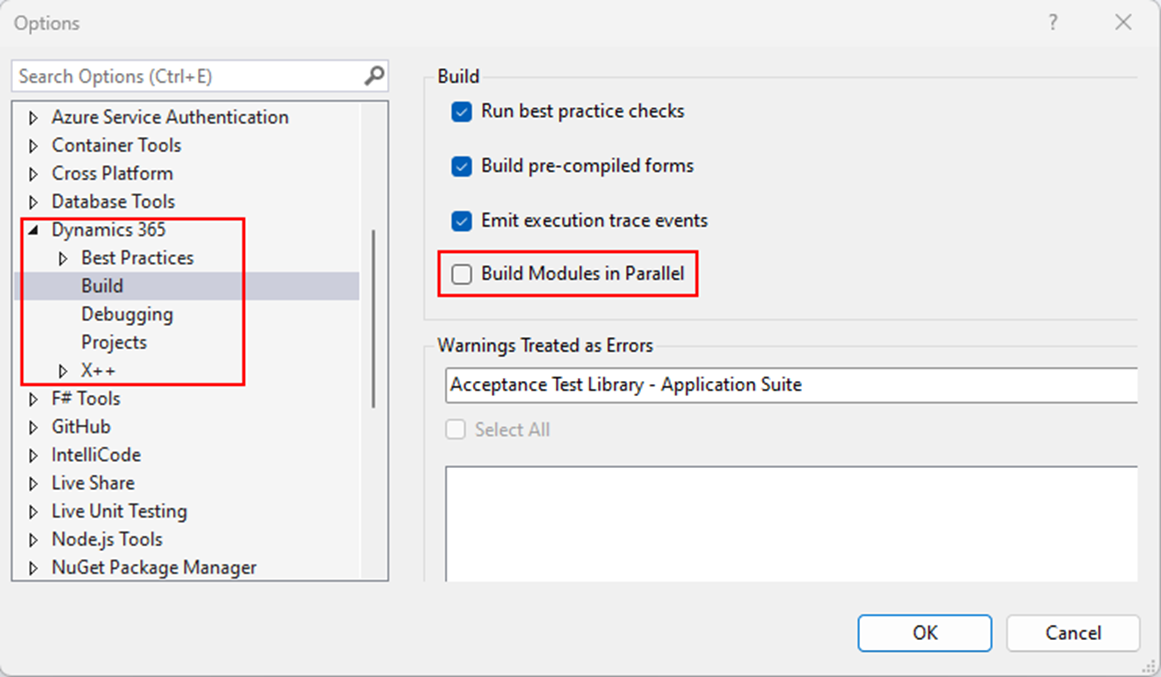
I believe it would be great to know the reason for this issue. In Visual Studio 2022, there is a setting called "Build Modules in Parallel". If it is enabled, you might constantly face the issue mentioned above.

So, it makes sense to check and deactivate this parameter in order to increase build stability in Tier-1 or Unified Developer Experience (UDE) environments.


D365 SCM warehouse mobile device development approach. Macros or constants.

As you might know there are a lot of controls and related macro commands in the WHS classes. It is not really convenient to search for macro commands in code, since they are not supported by the cross-reference feature.

In D365 Finance and Operations, there is an option that can help simplify the development of warehouse mobile flows and tracking using the existing commands. It is constants.

In my opinion, the best example of the mentioned option is the "ProcessGuideDataTypeNames" class. Inside the class you can find a lot of constants that are used in the mobile device flows. 

As you can see, macros are used at the class declaration level, but with a specific reference to a value in the WHSRF macro. As a result, you can use cross-references to find all the places in the code where the constants are used.

In general, constants have the following advantages over macros:
  • You can add a documentation comment to a constant but not to the value of a macro. Eventually, the language service will pick up this comment and provide a useful information to the user.
  • A constant is known by IntelliSense.
  • A constant is cross-referenced. Therefore, you can find all references for a specific constant but not for a macro.
  • A constant is subject to access modifiers. You can use the private, protected, and public modifiers. The accessibility of macros isn't rigorously defined.
  • Constant variables have scope, whereas macros don't have scope.
  • You can see the value of a constant or a read-only variable in the debugger.
  • Full control of the type for the constant.
  • You can also define constants as variables only. The compiler will maintain the invariant so that the value can't be modified.
  • A significant effect on the performance of the compiler.
Considering all the above, I would recommend you to use constants instead of macros in general, not only in WHS mobile device flow development.

Ax 2012 data upgrade in Tier-1 development environments(CHE). A parameter cannot be found that matches parameter name “TrustServerCertificate”.

When I ran data upgrade using Data Upgrade 10.0.41 package, I faced an issue:

Executing step: 3
GlobalUpdate script for service model: AOSService on machine: localhost
perform data upgrade, sync AX database and deploy SSRS report
A parameter cannot be found that matches parameter name 'TrustServerCertificate'.
The step failed.

On the Internet, I found that there might be a problem with a version of the SQL Server PowerShell module. When I installed the latest 22.x.x version I was able to resume the process. I performed the following steps:

Within a PowerShell prompt, I ran the following command: 
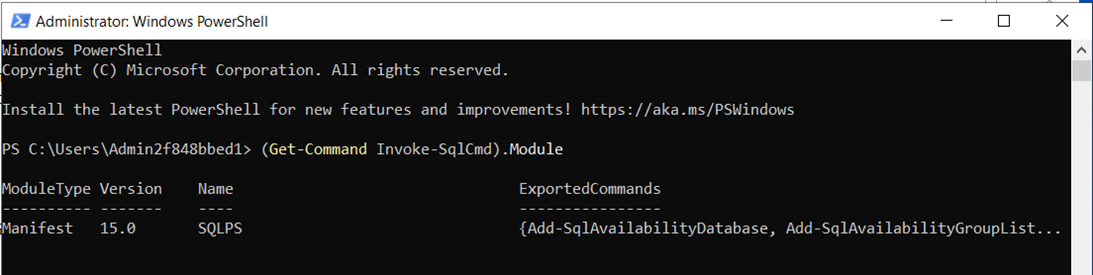
(Get-Command Invoke-SqlCmd).Module

In my case, I had 15.0 version.
In order to install the latest version I ran the command:
Install-Module -Name SqlServer -AllowClobber

When the process was completed, I ran the following PowerShell command to check the versions again: 
Get-Module -ListAvailable SqlServer, SqlPs

As a result, I saw version 22.x.x and I was able to continue with the data upgrade using the command: 
AXUpdateInstaller.exe execute -runbookid="MajorVersionDataUpgrade-runbook" -rerunstep=3

Microsoft announced the deprecation of Visual Studio 2022 for X++ development starting with Platform Update 74 (10.0.49)

Microsoft announced the deprecation of Visual Studio 2022 for X++ development. Starting with Platform Update 74 (10.0.49), Visual Studio 20...