Showing posts with label Administration. Show all posts

Regression Suite Automation Tool (RSAT) retirement announcement

Microsoft is hereby announcing the deprecation of the Regression Suite Automation Tool (RSAT), effective May 15, 2027.

As of that date, Microsoft will no longer provide support, maintenance, bug fixes, or feature enhancements for RSAT. Customers may continue to use RSAT after the effective date;  however, the product will remain available only on an unsupported basis.

This decision reflects Microsoft’s continued investment in modern testing approaches that support broader automation scenarios, greater extensibility, and long-term platform evolution.  RSAT was developed primarily for Finance and Operations scenarios and does not address the broader end-to-end testing requirements that many organizations now have across connected applications and business processes.

  • RSAT is optimized for Finance and Operations scenarios and offers limited support for broader cross-application testing requirements.
  • Organizations increasingly require testing solutions that can scale across integrated business processes and support modern automation practices.

Customers should evaluate alternative testing solutions in accordance with their business  and technical requirements, including offerings from the broader ecosystem of third-party testing vendors.

Visual Studio 2022 requirements to upgrade Tier-1 environments (CHE) to version 10.0.46.

If you are going to upgrade your developer cloud-hosted (OneBox) environments to version 10.0.46, you may face an issue at step 28. The issue is related to Visual Studio 2022.

Executing step: 28
Update script for service model: DevToolsService on machine: localhost update DevTools service
The Finance and Operations X++ Visual Studio extension requires Visual Studio 2022 to be updated. Please update Visual Studio 2022.
The step failed

If you are currently using version 17.10 or earlier, please update to version 17.11.5 or later. Once you have updated, try/retry the update process again.

Lifecycle Services (LCS) portal retirement announcement

Based on announcements regarding Microsoft Dynamics 365 Finance & Operations, February 16, 2026, marks a major shift in how environments are managed, with the transition of key capabilities from Lifecycle Services (LCS) to the Power Platform Admin Center (PPAC). 

Creating all new D365 Finance and Operations (F&O) cloud implementation projects will be routed through the Power Platform Admin Center (PPAC), rather than created in the LCS, which has been the traditional approach for years. As a result, environment actions, support motions, and governance checks will be moved to be in PPAC, not assumed from LCS.

Environment actions, support motions, and governance checks will be moved to be in PPAC, not assumed from LCS.

Existing projects, on-premises deployments, Commerce, and AX 2012 upgrades will continue to use LCS for the time being. To migrate existing LCS projects to PPAC, Microsoft provides a guide.

Visual Studio 2022 requirements to upgrade Tier-1 environments (CHE) to version 10.0.44.

If you are going to upgrade your developer cloud-hosted (OneBox) environments to version 10.0.44, you may face an issue at step 27. The issue is related to Visual Studio 2022.

Executing step: 27
Update script for service model: DevToolsService on machine: localhost update DevTools service Catastrophic failure in extension loading: The method or operation is not implemented. with stack:
...........................
The step failed

OR
Executing step: 27
Update script for service model: DevToolsService on machine: localhost update DevTools service
Cannot convert value "17.14.6 (June 2025)" to type "System.Version". Error: "Input string was not in a correct format."
The step failed

A new version of Visual Studio 2022 has been released to address this issue. If you are currently using version 17.14.2 or earlier, please update to version 17.7 or later. Once you have updated, try/retry the update process again.

D365 SCM. Deprecation of inventory transactions to track on-hand inventory in internal warehouse operations.

As you probably know, approximately in one year after the release of version 10.0.41, support for inventory transactions support for internal warehouse operations will be removed and all customers will be required to move to warehouse-specific inventory transactions for tracking on-hand inventory for internal warehouse operations.

It seems that the inventory transaction scenarios will be deprecated in version 10.0.45 or 10.0.46. There is a chance that, in one of the next versions (10.0.47 or higher), the application code related to inventory transactions for internal warehouse operations can be removed. 
If you still use inventory transactions for internal warehouse operations you have time for switching to the warehouse-specific inventory transactions feature. Don’t waste time. :)

Update: Microsoft will deprecate in version 10.0.49 the flighting and code that allows you to enable or disable warehouse inventory transactions in WHS parameters

New dev tools service requirements to upgrade Tier-1 environments (CHE) to version 10.0.42 or higher.

If you are going to upgrade your developer cloud-hosted (OneBox) environments to version 10.0.42 or higher you should keep in mind that it is impossible without Visual Studio 2022 components.

If there are no Visual Studio 2022 components in your environment during the upgrade, you will see an error:

Executing step: 29
Update script for service model: DevToolsService on machine: localhost update DevTools service
The Dynamics 365 F&O Development Tools extension folder for Visual Studio was not found
The step failed.

In my opinion, there are 2 ways to solve the issue:

  • Install Visual Studio 2022 on the environment
  • Deploy a new environment with version 10.0.42 on the LCS, or if you use local machines, you can create one from the VHD with version 10.0.39 and upgrade it to 10.0.42.
You can find an official announcement here.

D365 Finance and Operations. Data modifications in Production and Sandbox environments.

Introduction

If you migrate from one of the previous versions (Ax 2009/Ax 2012) you might have a kind of job pack for data correction for typical cases. From my perspective, it makes sense to adjust, test and move those jobs to D365 Finance and Operations so that you can use them by demand as before. 

In addition, you can create and use a set of classes for data corrections that can be applied by demand while the IT team is solving the root cause of the data inconsistencies.

Anyway, the question that is still here: How can we fix urgent data issues in D365 Finance and Operations in Production or Sandbox environments?

Important: Please keep in mind: Any data adjustment in the Production environment must be tested in a Prod copy (Sandbox UAT) environment first. Do not apply data modification operations in the Production environment if they were not tested previously. In the production environment you have no second attempt if the data modification works wrong.

Overview

In Ax 2012 we had access to AOT and could develop a job or open the table via the table browser and adjust data in close to real-time. In D365 Finance and Operations production or Sandbox environments, there is no AOT anymore and the table browser can be opened in the view mode.

Luckily, there are some ways to correct data in D365 Finance and Operations as well.

•  First of all, it is still possible to develop a kind of jobs. In D365 Finance and Operations it is
    called "X++ scripts with zero downtime". I described this standard feature in one of my previous
    posts. With this feature, you can call the standard system business logic and use all available 
    X++ commands. In my opinion, it is the best option if you can’t deploy (for some reason) 
    a new deployable package with the new jobs into the production environment.

•  Another option can be using the Microsoft Dynamics Excel add-in and Data Entities. If you 
    have data entities for the required tables/forms and there are not so many records in the 
    table/form that can be a convenient option. From my perspective, this option can be applied to 
    master data mostly. In addition, the standard entities have edit restrictions similar to their 
    source tables. If you would like to create new entities for data modifications it may be 
    needed to copy standard entities and change their field properties. If you choose this way you 
    need to keep this approach in mind and develop the required entities or add the required fields 
    to the standard entities in advance. However, this is a cheating way as well, as you may 
    bypass some system restrictions. You need to be sure that you understand all the 
    consequences of the changes.

•  Another available option is using the Open Data Protocol (OData). In this case, you need to 
    use the Postman application and connect the application to D365 Finance and Operations 
    instance. Please keep in mind, the data entities that you are going to use should have 
    the "Public" property - "Yes", and the "Public Collection Name" property should be populated. 
    As I mentioned above, you can use the standard entities or create new ones for the data 
    modification purpose.

    In the Internet you can find a lot of posts how to use Postman with D365 Finance and 
    Operations OData entities. Just to give you an idea there are a couple of examples: 
    link1, link2.

The next options are not the best ones, if you ask me. They can be applied only if you know exactly what you are doing and it is your "last hope". With those options, you can make direct changes in the database and bypass validation or other code that would run normally.

•  The next option can be using the Just-In-Time (JIT) database access. 
    From a data manipulation perspective, it is the same opportunity you had in Ax 2012 when you
    connected to Ax 2012 SQL Database via SQL Server Management Studio. In this way, 
    you can create, edit, and delete records in Production and Sandbox database tables directly. 
    However, this is not really recommended, as you may bypass validation or other code 
    that would normally run if you were using the system form and table methods for changing 
    data in the table. Before introducing any changes in the tables via SQL you have to 
    understand all the consequences of the changes.

•  The final option is to use a custom tool for data correction. As far as I know, there are some 
    available tools and extensions. For example, this one. You can find other ones. You should be 
    aware that Microsoft may decline support cases if they find this kind of tool in your 
    Prod environment. I have seen this notification in one of the posts on the Microsoft Community 
    forum. Unfortunately, I could not find it to share the link.

Conclusion

As you may see there are different options for data correction. Most likely you will be able to solve any data issue with one of the available options. My personal advice would be: to collect job/classes and Postman queries. As a result, you will have a list of tested classes and Postman requests for data corrections that you can use by demand.

I would recommend using the Just-In-Time (JIT) database access really carefully. Before introducing any changes with this option, you have to understand all the consequences of the changes.

Troubleshooting the package installation to a Tier-1 environment by using LCS

Introduction

When you install the package in a Tier-1 environment by using the LCS portal the process should be completed without any issue in 99%. Unfortunately,  there is still 1% when you may experience various issues.

Issue types


Disc space

Before you install the binary package in a Tier-1 environment via LCS portal (Maintain – Apply updates), please make sure that there is enough space on the disk where the folder *\AosService\PackageLocalDirectory is hosted. Usually, it is the "K" drive.

Otherwise, the preparation process can fail and the LCS environment will be in the "Preparation failed" state. If you download the log, it will be empty and the reason for the failure can be unclear.

Visual Studio

If the process fails at the Preparation stage or later and when you download the log it contains the data about preparation steps only, and the file "PreServicing-xxxxxxxxxxxxxxxxxxxx.error" contains only one line:

The specified module 'C:\Program Files\Microsoft Security Client\MpProvider' was not loaded because no valid module file was found in any module directory.

It may mean that a Visual studio instance was open in the environment when you started the process. In this case, you need to log in to the environment via an RDP connection. Then you should close the Visual Studio instance in all user sessions, close your RDP connection, and resume the process.

If you see no open Visual Studio instances in the environment you need to open Visual Studio in your session. Most probably it will install some updates or components behind. You need to keep it open for 5-10 minutes. Then you should close the Visual Studio instance, close your RDP connection, and resume the process.

Maintenance mode

Occasionally, the environment can be in the maintenance mode. In this case, you can face an issue on the step "GlobalUpdate script for service model: AOSService on machine: Machine Name" and the environment will be in the "Failed" state.

In this case, you need to log in to the environment via an RDP connection and check the Services (Control Panel\System and Security\Administrative Tools\Services). If you see that the "Microsoft Dynamics 365 Unified Operations: Batch Management Service" is stopped and it cannot be started it is the root cause of the issue. You need to be able to start this service otherwise you can’t resume the installation process.

In order to find a reason, you need to take a look at the Windows event logs.

If you see there 3 errors in a row it may mean that the environment is in the maintenance mode.

•  The description for Event ID 110 from source Microsoft Dynamics 365 for Finance and 
    Operations cannot be found. Either the component that raises this event is not installed on 
    your local computer or the installation is corrupted. 
    You can install or repair the component on the local computer.

    If the event originated on another computer, the display information had to be saved with the 
    event. The following information was included in the event:

    AX is shutting down due to an error.
    Microsoft.Dynamics.AX.Batch.BatchService+MaintenanceModeBatchStartupException: 
    Exception of type
    'Microsoft.Dynamics.AX.Batch.BatchService+MaintenanceModeBatchStartupException' 
    was thrown.
    at Microsoft.Dynamics.AX.Batch.BatchService.OnStart(String[] args)
    Exception details:
    Microsoft.Dynamics.AX.Batch.BatchService+MaintenanceModeBatchStartupException: 
    Exception of type
    'Microsoft.Dynamics.AX.Batch.BatchService+MaintenanceModeBatchStartupException' 
    was thrown.
    at Microsoft.Dynamics.AX.Batch.BatchService.OnStart(String[] args)

•  Faulting application name: Batch.exe, version: 7.0.7198.49, time stamp: 0xb4453638
    Faulting module name: unknown, version: 0.0.0.0, time stamp: 0x00000000
    Exception code: 0x80131623
    Fault offset: 0x00007ffb9cb54093
    Faulting process id: 0x1508
    Faulting application start time: 0x01da8cdf84d8bc61
    Faulting application path: K:\AosService\WebRoot\bin\Batch.exe
    Faulting module path: unknown
    Report Id: 6054eadb-7058-44e4-966c-fcd600a10af7
    Faulting package full name: 
    Faulting package-relative application ID:

• Application: Batch.exe
   Framework Version: v4.0.30319
   Description: The application requested process termination through       System.Environment.FailFast(string message).
   Message: Tearing the process down due to an unhandled exception.
   Stack:
   at System.Environment.FailFast(System.String, System.Exception)
   at <Module>.FailFast(UInt32, System.String, System.Exception)
   at <Module>.OnAppDomainUnhandledException(System.Object,
   System.UnhandledExceptionEventArgs)
   at System.Runtime.ExceptionServices.ExceptionDispatchInfo.Throw()
   at System.ServiceProcess.ServiceBase.Run(System.ServiceProcess.ServiceBase[])
   at Microsoft.Dynamics.AX.Batch.Entrypoint.Main(System.String[])

To be on the safe side you can use the standard documentation. You can query data from the "SQLSYSTEMVARIABLES" object and if you see that 'CONFIGURATIONMODE' is 1, the system is in the Maintenance mode.

If it is true you need to revert the environment to the normal state. Then you need to start the "Microsoft Dynamics 365 Unified Operations: Batch Management Service" manually. If it  starts - you fixed the issue. After that, you can close your RDP connection, and resume the process. 

Workflow Issue: Stopped (error): X++ Exception: Work item could not be created. Insufficient security permissions for user XXXX. Please review the user's security permissions to ensure they are sufficient for this workflow document and then resume the workflow.

Recently, we experienced a workflow security issue when the new D365 update was installed. Originally, the workflow process was copied from one of the standard ones and had worked for at least one year.

The error message was:

Workflow Issue: Stopped (error): X++ Exception: Work item could not be created. Insufficient security permissions for user XXXX. Please review the user's security permissions to ensure they are sufficient for this workflow document and then resume the workflow.

The first idea was that there are some changes in the standard Workflow process that we should apply. But there were no changes. We read the standard documentation and this article on the workflow security.

We searched the Internet and found a lot of posts and articles on this error.

Below you can find a list of possible reasons for the error:

1. User doesn't have approval rights (Approval related security is not assigned)
2. User doesn't have access to the menu item associated with workflow.
3. No employee is mapped to the user.
4. There is a dynamic rule assigned to the user that prevents this user from doing the operation.
5. The menu items specified on the approval or task elements for the step in the workflow have their configuration key disabled.

Unfortunately, all those options did not apply to our case.

We tried:

  • Operations "Data > Synchronize all" and "Data > Repair" on the "Security Configuration" form. 
  • Re-assigning user roles. (System admin > Security > Assign users to roles)
  • Applying the "System administrator" role to user accounts as much as possible.

and so on.

Finally, we were able to find the cause of the issue. The error message says that it is a security issue but, in our case, it was a workflow query issue.  Users have started doing documents a bit differently and the query inside our workflow returned no record. The system interpreted this case as a security issue and raised the security error.

So, the lesson is: It can be not only about security permissions or configuration keys. If you see this error it makes sense to verify that the workflow query returns data.

Refresh caches in Dynamics 365 Finance and Operations

Sometimes, it is necessary to refresh different types of caches in the system. In Ax 2012 you can do it from the development workspace: Tools - Caches and select the required option.


In D365 we can clear or refresh the cache types using the following commands in the browser:
  • Refresh dictionary:                                                                        https://ENVIRONMENT_URL/?mi=SysClassRunner&cls=SysFlushDictionary
  • Refresh data:
    https://ENVIRONMENT_URL/?mi=SysClassRunner&cls=SysFlushData
  • Refresh elements:
    https://ENVIRONMENT_URL/?mi=SysClassRunner&cls=SysFlushAOD
Note: The refreshing of the code extension cache was included in SysFlushAOD::Main() method in 2021. The method SysExtensionCache::clearAllScopes() has been marked as deprecated since then.
  • Refresh report server:                                                                          https://ENVIRONMENT_URL/?mi=SysClassRunner&cls=SysFlushReportServer
As it was in Ax 2012, we can refresh the cache for database logging:
  • Refresh database log:                                                                    https://ENVIRONMENT_URL/?mi=SysClassRunner&cls=SysFlushDatabaseLogSetup
There is a new cache type in D365. It is related to a cross-company data-sharing feature. This feature resembles the virtual companies feature in Microsoft Dynamics AX 2012.
  • Refresh the cross-company data sharing:                                    https://ENVIRONMENT_URL/?mi=SysClassRunner&cls=SysFlushSysSharingRules
There is still "SysFlushSystemSequence" class in D365. In the previous versions, it was used to record identifier alignment during the data import process via group definitions. Starting D365 this approach has been deprecated the use of this class makes no sense anymore.

Troubleshooting the deployable packages installation from the command line on a development (one box) environment

Overview

The deployment package installation in a development environment is a common task when you need to install an ISV solution or another partner. The installation process is well described in the standard guide. Theoretically, the process should go smoothly. In reality, you may face various errors during this process.

Time out issue

Sometimes, the installation process can fail with the error:

Generated runbook with id: Runbook20230907093027
Start executing runbook : Runbook20230907093027
Executing step: 1
Stop script for service model: AOSService on machine: localhost
Stop AOS service and Batch service

Error during AOS stop: File locks found on K:\AosService\WebRoot\bin\AOSKernel.dll for more than 300 seconds. Check previous logs for identified locking processes. [Log: C:\Temp\ZZZ_10.02.15.12\RunbookWorkingFolder\Runbook20230907093027\localhost\AOSService\1\Log\AutoStopAOS.log]

The step failed


In this case, you need to stop IIS Express in your dev box and repeat the installation process.

Don't forget to run database synchronization. You must run database synchronization from Microsoft Visual Studio after you install the deployable package. 

Check in issue

When you try to check in the installed binary files in Visual Studio you may face the issue below: 

**:\AosService\PackageLocalDirectory\ModelName\bin\file_name
TFS30063: You are not authorized to access.

You  can try to do the following:

  • Reopen Visual Studio 
  • Try to do a check-in again
If the previous actions have not worked:
  • Reopen Visual Studio
  • Stop The Batch Service and IIS Express in the Dev Box  
  • Try to do a check-in again

New requirement for developer cloud-hosted (OneBox) environments running version 10.0.36 or later

If you are going to upgrade your developer cloud-hosted (OneBox) environments to version 10.0.36 or later you should keep in mind that additional components should be installed manually in advance. The required component is an updated Microsoft Visual C++ redistributable package.

Otherwise, you will see the following error message during the upgrade process:

Error during AOS stop: Please upgrade to the latest Visual C++ redistributable package to continue with the installation. For more details, visit aka.ms/PreReqChanges [Log: C:\Temp\PU20\AXPlatformUpdate\RunbookWorkingFolder\AZH81-runbook\localhost\RetailHQConfiguration\2\Log\AutoStopAOS.log]

The step failed


P.S. All new required components are automatically installed in all newly deployed cloud-hosted environments.

Dynamics 365 Supply Chain Management new update policy

Currently, the vendor releases 7 updates for Dynamics 365 Finance & Supply Chain Management over the year and only two or three of them are major ones. 

Starting 2024, there will be significant changes to the release pattern and cadence. The changes go into effect with updates to some of the release milestones for 10.0.38. 

At the moment, based on the official documentation the key points of the new approach are: 

  • The vendor will release four updates in December, March, June, and September. 
  • The major updates will be released in March and September.
  • Starting February 19, 2024, the maximum number of consecutive pauses of updates allowed will be reduced from three to one.
  • With the release durations extended, the same minimum of two annual service updates is maintained
The following table illustrates allowed pauses by month based on your installed version until the transition is completed.


If you have any other questions, please go to One Version service updates FAQ to learn how these changes affect the release process.


Deploy development environment for Dynamics 365 Finance and Operations

When you deploy a new development environment there are 2 options:

  • A cloud development environment in your Lifecycle Services (LCS) project
  • VM that is running locally

All necessary documentation is available at the Microsoft resources. I would like to tell a few words about my experience with local VMs deployment.

1. You must be an administrator on the instance for developer access. To ensure your own credentials as an administrator on a local VM, run the "Admin user provisioning tool". On the local VM, you can find a link on the desktop. The tool should run as an administrator option (right-click the icon and then click Run as administrator). 

Note: If you see the Admin Provisioning Tool Error: "The value’s length for key ‘password’ exceeds it’s limit of ‘128’" it means that most probably you are using the VM with a virtual hard drive (VHD) that was released for versions 10.0.24 and later. In this case, you should follow the guidelines to ensure the process in order to resolve the issue.

Another possible reason is that your email is related to the inactive Azure Active Directory tenant or you just made a typo. 

2. If there is more than one developer using the local VMs and they are going to be linked in the same DevOps project I would recommend having unique environment names so that developer workspaces have unique names.

For this purpose, you need to go to the Control Panel and rename the VM:


The system will ask for a restart. I would postpone this action until the SQL Server instance will be renamed.

3. The next step is to rename the SQL Server instance. 

Note: My advice is: The SQL server instance should have the same name as the VM.

You need to run SQL Server Management Studio as an administrator option (right-click the icon and then click Run as administrator). Then you need to run the query:

--Run this with the updated names

sp_dropserver 'MININT-F36S5EH'; --Old Name

GO 

sp_addserver 'New VM Name', LOCAL; --New Name

GO

After that, the VM should be restarted. When it is running again, you should be able to connect the SQL Server instance with the new name via SQL  Server Management Studio. After that, you can run Visual Studio in order to establish the connection with your DevOps project and configure your workspace.

Run a runnable class (a job in terming of Ax 2009/2012) in Dynamics 365 Finance and Operation

Overview

In the previous versions of the system (AX 2009, AX 2012), you can create a new job in AOT: 

And run it via F5 button from AOT later:

In Dynamics 365 Finance and Operation there is another way. The option depends on the environment type.

Tier-1 environment

In Tier-1 environment, you have Visual Studio installed so you can create a runnable class (a job in terming of Ax 2009/2012) with the “main” method. Then you can run it via the link:

https://<D365URL> /?cmp=<YourCompanyName>&mi=SysClassRunner&cls=<YourRunnableClassName>

Tier-2 and higher environments

If your runnable class (a job in terming of Ax 2009/2012) was included in a binary package and the package is installed in Tier-2 environment, you can follow the same way - you can run it via the link:

https://<D365URL> /?cmp=<YourCompanyName>&mi=SysClassRunner&cls=<YourRunnableClassName>

If you need to run a runnable class (a job in terming of Ax 2009/2012) that was not installed in the environment you can use the feature "X++ scripts with zero downtime". This feature allows you to upload and run deployable packages that contain custom X++ scripts without having to go through Microsoft Dynamics Lifecycle Services (LCS) or suspending your system. Therefore, you can correct minor data inconsistencies without causing any disruptive downtime.

Of course, the feature requires a regular deployable package that can be created in Visual Studio. The deployable package must contain only one runnable X++ class. In other words, it must have one class that includes a “main” method. Then you need to upload and run a deployable package in the environment as described in the documentation.

In fact, you can create a package in a development machine (Tier-1) and add one class to this package as mentioned in the requirements. It is not necessary to do check-ins of the code to your Azure Dev Ops. You can create a deployable package in your development environment and use it with the feature.

From a technical perspective, the "Run custom X++ scripts with zero downtime" feature works as follows:

The system uses Assembly.LoadFrom API. This means the package is never deployed or installed in a traditional way. Once the execution is completed, there is no way to access this code again, when the AOS eventually restarts this assembly disappears from the memory too. No other AOSes will know, no other users can be influenced. Since it is loaded temporarily for the shortest duration possible no action is needed from ALM or uninstalling perspectives.

If you upload the package/model with the same name but with a new runnable class (a job in terming of Ax 2009/2012) inside, the system can show the following message:


If you ignore this message and run the new script, the previous runnable class will be executed.

It means that you should give unique names to your X++ scripts binary packages otherwise you might get unexpected results.

If you would like to test the feature in a Tier-1 environment you can enable the "AppConsistencyCustomScriptFlight" flag within the “SYSFLIGHTING” table.

Customization Analysis Report (CAR) in D365 Finance and Operations

The Customization Analysis Report (CAR) is a tool that analyzes your customization and extension models and runs a predefined set of best practice rules. The report is one of the requirements of the solution certification process. 

Let’s imagine we have a model. It’s called the MYDEV model.

Normally we would use the following command to generate the Customization Analysis Report (CAR) in a development environment:

K:\AOSService\PackagesLocalDirectory\Bin\xppbp -metadata=K:\AosService\PackagesLocalDirectory -all -model:MYDEV -module:MYDEV 
-car=K:\temp\CAReport.xlsx

If you would like to verify the particular object you can include additional parameters such as Class, Form, or another object type, for example:

K:\AOSService\PackagesLocalDirectory\Bin\xppbp -metadata=K:\AosService\PackagesLocalDirectory -model:MYDEV -module:MYDEV 
-car=K:\temp\CAReport.xlsx Class:WHSDocumentRoutingFormMY_Extension

If your MYDEV model references a binary model (it can be a case when you use third-party or ISV models), then it is required to include the -PackagesRoot parameter, for example:

K:\AOSService\PackagesLocalDirectory\Bin\xppbp 
-packagesroot=K:\AosService\PackagesLocalDirectory 
-metadata=K:\AosService\PackagesLocalDirectory 
-all -model:MYDEV -module:MYDEV -car=K:\temp\CAReport.xlsx

D365 Finance and Operations disable the flight feature in a Tier-1 environment.

When we recently were updating one of our Tier-1 environments to 10.0.31 version we faced an issue with WHS mobile app.

The mobile app reverted to the login screen after trying to go to a specific menu. We tried the following options in order to resolve the issue:

  • Delete all user sessions from Warehouse management > Inquiries and reports > Mobile device logs > Work user sessions.
  • Delete and recreate the mobile app user configured/used for your tests (Warehouse management > Setup > Worker)

After an investigation we realized that the issue was rooting in Issue 704649 - Warehouse mobile app gives error "The size of the XML request exceeds the maximum valued allowed". This code changes controls with the flight WHSMobileAppXMLSizeValidationFlight.

So we decided to disable this flight by using the SYSFLIGHTING table. The procedure is nicely described in an old post I found here, I will adjust the procedure to our case.

For this purpose it is needed to add a record with the field Enabled = 1 for the kill switch for the flight, meaning for WHSMobileAppXMLSizeValidationFlight_KillSwitch.

Below specific steps to follow to enable the kill switch for the flight:

1. Add a record with this Insert statement for SYSFLIGHTING table, but please replace the appropriate values:

INSERT INTO SYSFLIGHTING VALUES ('FlightName', 1, 12719367, Partition, RecID, 1)

Note: After replacing 'FlightName' with the actual flight name, the values are/should be:

- 1 stands for Enabled

- 12719367 is the Flight service ID

- Partition = partition ID from your environment which can be obtained by querying (select) for any record. Every record will have a partition id which must be copied and used here.

- RecID = same ID as partition(*) (If there is no other record in SYSFLIGHTING table, then it can be one. Or you can can find one by executing "SELECT max(recid)+1 from SysFlighting")

- 1 is for the RecVersion

- actually, the SQL query could also be much simpler, like this

INSERT INTO SYSFLIGHTING ([FLIGHTNAME],[ENABLED],[FLIGHTSERVICEID]) VALUES ('WHSMobileAppXMLSizeValidationFlight_KillSwitch', 1, 12719367)

2 Verify that C:\AOSService\webroot\web.config has the correct DataAccess.FlightingServiceCatalogID. You should find a line with this key and a value of 12719367. If not, update accordingly the file and save it.

Notes:

Having web.config file in the environment is a clear indication that key DataAccess.FlightingServiceCatalogID should have value 12719367 and this value should be used also in the SQL statement from above for the FLIGHTSERVICEID field value.

If web.config file is not present in the environment, but AXService.config file is present (see next note), it is a clear indication that environment is like an On-Premise deployment (which might be the case also for dev boxes or environments that are not Microsoft managed, but still on Microsoft cloud). In this scenario, see the next note with important differences.

Notes: (not having web.config file in the environment):

Verify that C:\ProgramData\SF\AOS_182\Fabric\work\Applications\AXSFType_App641\AXSF.Code.1.0.20200715180202\AXService.config has the correct DataAccess.FlightingServiceCatalogID. You should find a line with this key and a value of 0. If not, update accordingly the file and save it.

The AXService.config file path might be different (accordingly to your installation).

Having AXService.config file in the environment is a clear indication that key DataAccess.FlightingServiceCatalogID should have value 0 and this value should be used also in the SQL statement from above for the FLIGHTSERVICEID field value.

So, the SQL query should be like this:

INSERT INTO SYSFLIGHTING ([FLIGHTNAME],[ENABLED],[FLIGHTSERVICEID]) VALUES ('WHSMobileAppXMLSizeValidationFlight_KillSwitch', 1, 0)

3. Restart IIS and batch service

P.S. The issue was reported to Microsoft and it can be solved in 10.0.33 version.


Installation of Microsoft Dynamics 365 for Finance and Operations software deployable package on a development environment (one that is not connected to LCS)

As you may know the development environment can be hosted on LCS or deployed as virtual machine on your laptop. In my case, I use the laptop in order to host my development virtual machine.  Since Microsoft releases about 10 updates every year I install them periodically in my dev box.

The installation process of the deployable package is described in the standard documentation. All key terms and definitions are perfectly explained there. 

I would like to share my experience of the installation process for the standard “all in one” virtual machine. I hope it can be useful and save your time. 

So let’s start.

1. Download the software deployable package from LCS on the virtual machine (VM) in a non-user folder.

2. After the zip file is downloaded, right-click it, and then select Properties. Then, in the "Properties" dialog box, on the "General" tab, select "Unblock" to unlock the files. (https://community.dynamics.com/ax/f/33/t/244550)

3. Extract the files to a folder. Here we will use C:\Temp\PU20\AXPlatformUpdate folder as an example.

4. Open a Command Prompt window “as Administrator” mode and change the folder with the command: cd C:\Temp\PU20\AXPlatformUpdate

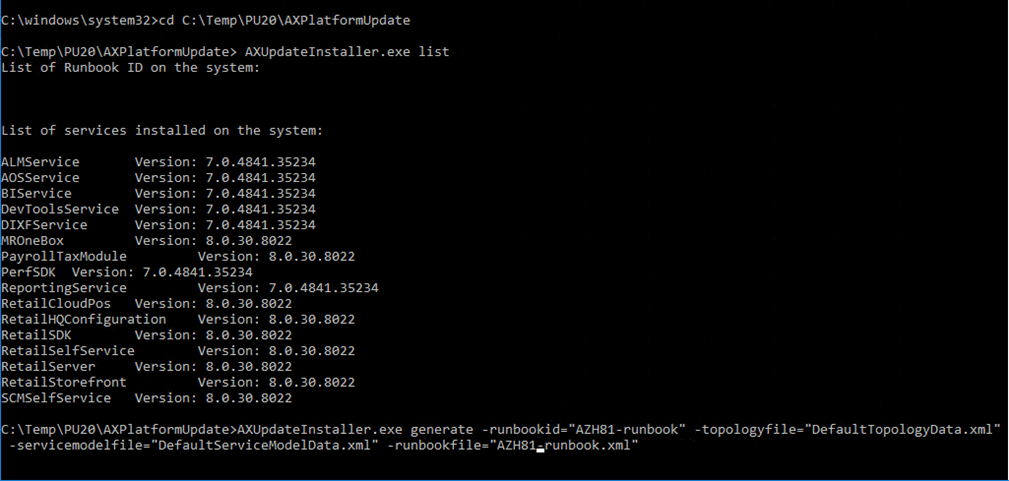
5. Execute the command: AXUpdateInstaller.exe list It will show the list of installed components:


All listed components should be added to the DefaultTopologyData.xml file. This file is placed in the same C:\Temp\PU20\AXPlatformUpdate folder. If we open this file with Notepad, it must look like this:


It is needed to add the list of the components to the DefaultTopologyData.xml file.

6. Generate the runbook file that will provide step-by-step instructions for updating the VM. In our case the command for generating the runbook file will be: 
AXUpdateInstaller.exe generate 
-runbookid="AZH81-runbook" 
-topologyfile="DefaultTopologyData.xml" 
-servicemodelfile="DefaultServiceModelData.xml" 
-runbookfile="AZH81-runbook.xml"


runbookID – A parameter specified by the developer, it applies the deployable package.
topologyFile – The path of the DefaultTopologyData.xml file.
serviceModelFile – The path of the DefaultServiceModelData.xml file.
runbookFile – The name of the runbook file to generate (for example, AZH81-runbook.xml).

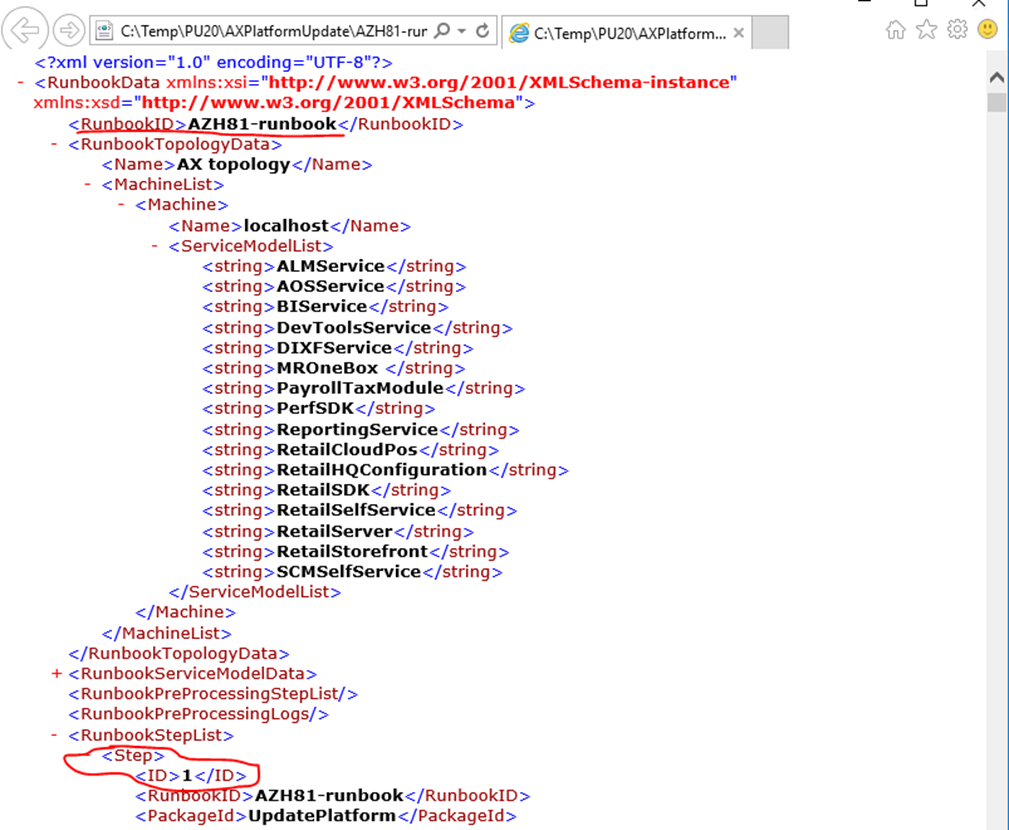
After executing the command the file AZH81-runbook.xml will be created in the C:\Temp\PU20\AXPlatformUpdate folder. If we open the created file, it will look like:


7. Verify that everyone has full permissions for the C:\Temp\PU20\AXPlatformUpdate folder and remove the “Read only” property for the mentioned folder.

8. Import the runbook by running the following command: 
AXUpdateInstaller.exe import -runbookfile="AZH81-runbook.xml"

9. Run the runbook by running the following command:
AXUpdateInstaller.exe execute -runbookid=AZH81-runbook
While running the process, messages as on the screenshot below should appear:


Note: If step in the runbook fails, you can rerun it by running the following command:
AXUpdateInstaller.exe execute -runbookid=“AZH81-runbook” -rerunstep=6
The example above is provided for the case if step №6 has failed.

My troubleshooting experience

Database synchronization fails

Executing step: 24

GlobalUpdate script for service model: AOSService on machine: localhost

Sync AX database
The running command stopped because the preference variable "ErrorActionPreference" or common parameter is set to Stop: System.Management.Automation.RuntimeException: An exception of type System.Net.WebException occurred when making an http request to: http://127.0.0.1/ReportServer. Refer to the log file for more details.
The step failed
The step: if 24 failed, you can use rerun step command to debug the step explicitly
at Microsoft.Dynamics.AX.AXUpdateInstallerBase.RunbookExecutor.ExecuteRunbookStepList(RunbookData runbookData, String updatePackageFilePath, Boolean silent, String stepID, ExecuteStepMode executeStepMode, Boolean versionCheck, Parameters parameters)
at Microsoft.Dynamics.AX.AXUpdateInstallerBase.AXUpdateInstallerBase.execute(String runbookID, Boolean silent, String updatePackageFilePath, IRunbookExecutor runbookExecutor, Boolean versionCheck, Parameters param)
at Microsoft.Dynamics.AX.AXUpdateInstaller.Program.InstallUpdate(String[] args)
at Microsoft.Dynamics.AX.AXUpdateInstaller.Program.Main(String[] args)
OR 
Executing step: 24
GlobalUpdate script for service model: AOSService on machine: localhost
Sync AX database
The running command stopped because the preference variable "ErrorActionPreference" or common parameter is set to Stop: System.Management.Automation.RuntimeException: An exception of type System.Net.WebException occurred when making an http request to: http://127.0.0.1:80/ReportServer. Refer to the log file for more details.
The step failed

The very first time this appeared in PU 30 and it is still happening. To fix this issue AutoDeployReportAndSyncDB.ps1 file needs modification. In our example it will be in: 
C:\Temp\PU20\AXPlatformUpdate\AOSService\Scripts\AutoDeployReportAndSyncDB.ps1

After the  #db sync add the command:  invoke-Expression "net start reportserver"

#db sync 
invoke-Expression "net start reportserver"

Save the changes and rerun the failed step by running the following command:  
AXUpdateInstaller.exe execute -runbookid=“AZH81-runbook” -rerunstep=24

Timeout error

Executing step: 24
GlobalUpdate script for service model: AOSService on machine: localhost
Sync AX database
The step execution time exceed the timeout value specified: 120min
The step failed.

It might happen if your local hosted virtual machine does not have enough performance. It can happen on any step and be fixed in the same way. Increasing the timeout value for the appropriate step is advisable.

In order to resolve this particular issue you need to modify the runbook file. In our example it is AZH81-runbook.xml file from folder C:\Temp\PU20\AXPlatformUpdate. It is needed to find the following section of the file and increase the TimeoutValue value:

<GlobalUpdateScript>
          <FileName>AutoDeployReportAndSyncDB.ps1</FileName>
          <Automated>true</Automated>
          <Description>Sync AX database</Description>
          <RetryCount>0</RetryCount>
          <TimeoutValue>120</TimeoutValue>
          <InvokeWithPowershellProcess>false</InvokeWithPowershellProcess>
          <DynamicStepDefinition />
  </GlobalUpdateScript>

For example, we can set 720 minutes:

<GlobalUpdateScript>
          <FileName>AutoDeployReportAndSyncDB.ps1</FileName>
          <Automated>true</Automated>
          <Description>Sync AX database</Description>
          <RetryCount>0</RetryCount>
          <TimeoutValue>720</TimeoutValue>
          <InvokeWithPowershellProcess>false</InvokeWithPowershellProcess>
          <DynamicStepDefinition />
  </GlobalUpdateScript>

Save the changes and rerun the failed step by running the following command:
AXUpdateInstaller.exe execute -runbookid=“AZH81-runbook” -rerunstep=24

If rerun of the process does not work, you need to import the runbook file by running the following command: AXUpdateInstaller.exe import -runbookfile="AZH81-runbook.xml"

And run the process from the very beginning by running the following command: AXUpdateInstaller.exe execute -runbookid=AZH81-runbook 

If it is not possible to run the process from the very beginning , you can restart the VM and run the process from the very beginning by running the following command: 
AXUpdateInstaller.exe execute -runbookid=AZH81-runbook

Batch Management Service error

If the Batch Management Service does not work and you can’t start it and you see the errors in Event Viewer as on screenshots below:

In addition, you get the error like those mentioned below:

Executing step: 63

Start script for service model: AOSService on machine: localhost
Start AOS service and Batch service
SUCCESS: The scheduled task "DynamicsServicingCopyStaging" has successfully been created.
Error during AOS start: Failed to start service 'Microsoft Dynamics 365 Unified Operations: Batch Management Service (DynamicsAxBatch)'. [Log: C:\Temp\PU20\AXPlatformUpdate\RunbookWorkingFolder\AZH81-runbook\localhost\AOSService\63\Log\AutoStartAOS.log]
The step failed
The step: if 63 failed, you can use rerunstep command to debug the step explicitly at Microsoft.Dynamics.AX.AXUpdateInstallerBase.RunbookExecutor.ExecuteRunbookStepList(RunbookData runbookData, String updatePackageFilePath, Boolean silent, String stepID, ExecuteStepMode executeStepMode, Boolean versionCheck, Parameters parameters)
at Microsoft.Dynamics.AX.AXUpdateInstaller.Program.InstallUpdate(String[] args)
at Microsoft.Dynamics.AX.AXUpdateInstaller.Program.Main(String[] args)

It means that your environment is in a maintenance mode. You should turn off the maintenance mode. (https://docs.microsoft.com/en-us/dynamics365/fin-ops-core/dev-itpro/sysadmin/maintenance-mode)
Then you can start the Batch Management Service and continue the updating process by running the following command: 
AXUpdateInstaller.exe execute -runbookid=“AZH81-runbook” -rerunstep=63


User-based service protection API limits in Microsoft Dynamics 365 Finance and Operations

Last month Microsoft announced user-based service protection API limits in Microsoft Dynamics 365 Finance and Operations. This information can be crucial for a project if there are many various integration flows implemented.

These limits are designed to preserve service health in the event of client applications with extraordinary demands on server resources. Additionally, these limits are designed to throttle incoming API requests when there are sudden bursts of traffic or concurrent long-running requests against the server.

The limits are designed to affect client applications that perform extraordinary API requests only, and protect against unexpected surges. Normally regular users of interactive clients and standard data integrations shouldn’t be affected. However, implemented OData and custom service integrations may require changes to handle the API limits. Requests that exceed the limits will return a 429 response with a Retry-After interval. So it may be required to make updates to optimize integrations, maximizing throughput.

The limits are in addition to the resource-based service protection API limits that have been in place for Finance and Operations apps environments since version 10.0.19 (which protects the environment from aggregated user demand exhausting environment resources). The user-based limits define specific API usage thresholds for OData and custom API (service) endpoints to prevent individual users or integrations from causing outages or degrading environment performance.

For now, the service protection API limits don't apply to all Microsoft services. The following services are currently exempt from them:

At this moment, according to the published documentation the new user-based service protection API limits will be available to enable in Finance and Operations apps environments with version 10.0.28 (PU53). In version 10.0.29 (PU54), with 2022 release wave 2, the API limits will be enabled by default in all environments. The limits will be optional, allowing environment administrators to temporarily disable them should additional time be needed to optimize integrations. In version 10.0.32 (PU56), with 2023 release wave 1, the API limits will be mandatory and the option to disable API limits will no longer be provided. So there is about one year to prepare for the new API limits.

The official documentation about the new feature can be found:

Note: The documentation is talking about "User-based" and not integration-based (app-id-based) but it seems "User-based" throttling is referring to the service principal, which is where the requests are being measured.

Also, here is a TechTalk video I find useful. This video can provide guidance and can answer some questions related to service protection API limits. 

In addition, I was able to find some topics related to the API limits which I found interesting, on the Internet. I wrote down the interesting points that I would like to share:

  • If a generic user is used to run recurring batch jobs there is no option to opt this user out of the user-based service protection API limits so far.
  • OData requests with $batch (like exchange rates) will be subject to the same throttling limits. It may be needed to adjust the number of records included in the batch to not exceed any of the three usage limits.
  • An example of "execution time" for throttling:

There are 6000 oData calls per 5 minutes and each call takes 1 second to execute. 

Because of "Execution time" limits (20 minutes (1,200 seconds)) in this scenario number of calls  will be limited to 1200 since the limit is on the cumulative execution time of the API requests for that user/service principal within the 5-minute sliding window. So the number of API requests that can be made, will be limited by how compute-intensive the requests are.


Microsoft announced the deprecation of Visual Studio 2022 for X++ development starting with Platform Update 74 (10.0.49)

Microsoft announced the deprecation of Visual Studio 2022 for X++ development. Starting with Platform Update 74 (10.0.49), Visual Studio 20...